
Fix Plan
The Fix Plan tab lists the problems that are holding your website back from AI search, what each one costs you, and how to fix it. Nothing on your website changes by itself. You decide what to apply.
What you see on the tab
- Your top 3 fixes, at the very top, under the line Start here: the most effect for the least effort. If you only do three things, do these.
- A count of the issues found, for example 24 AI-blocking issues found, and how many of them have fix guidance.
- The full plan, grouped by timeframe:
- This Week: quick wins
- This Month
- This Quarter: bigger pieces of work
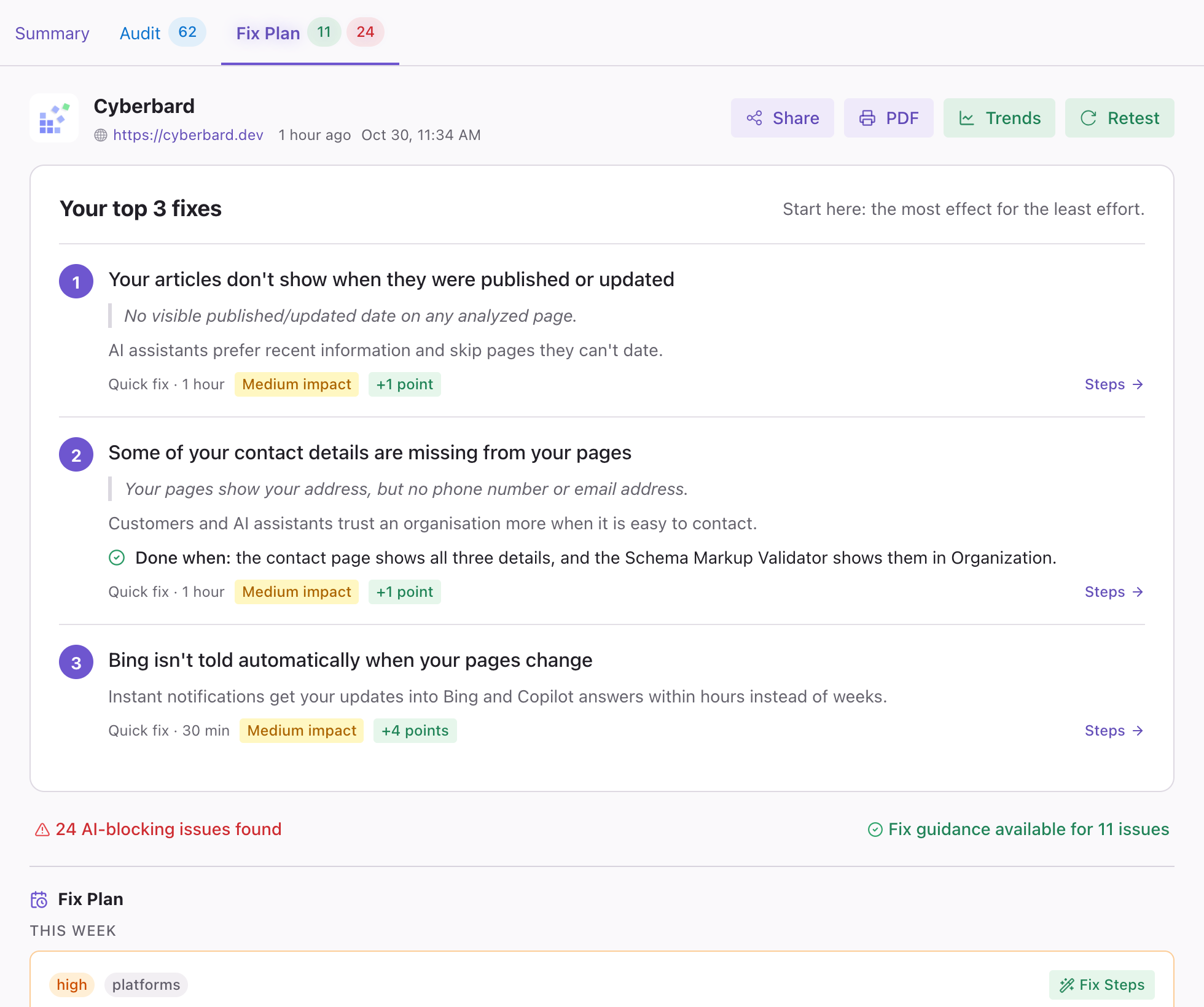
The top 3 fixes
Each of the three shows the problem, what it means for you, and a small summary line, such as Quick fix · 1 hour, Medium impact and +4 points. That is roughly how long the fix takes, how much it matters, and how much your AI readiness score could rise. Click Steps to jump to the full card for that problem.
Reading a fix card
Each problem in the full plan is a card:
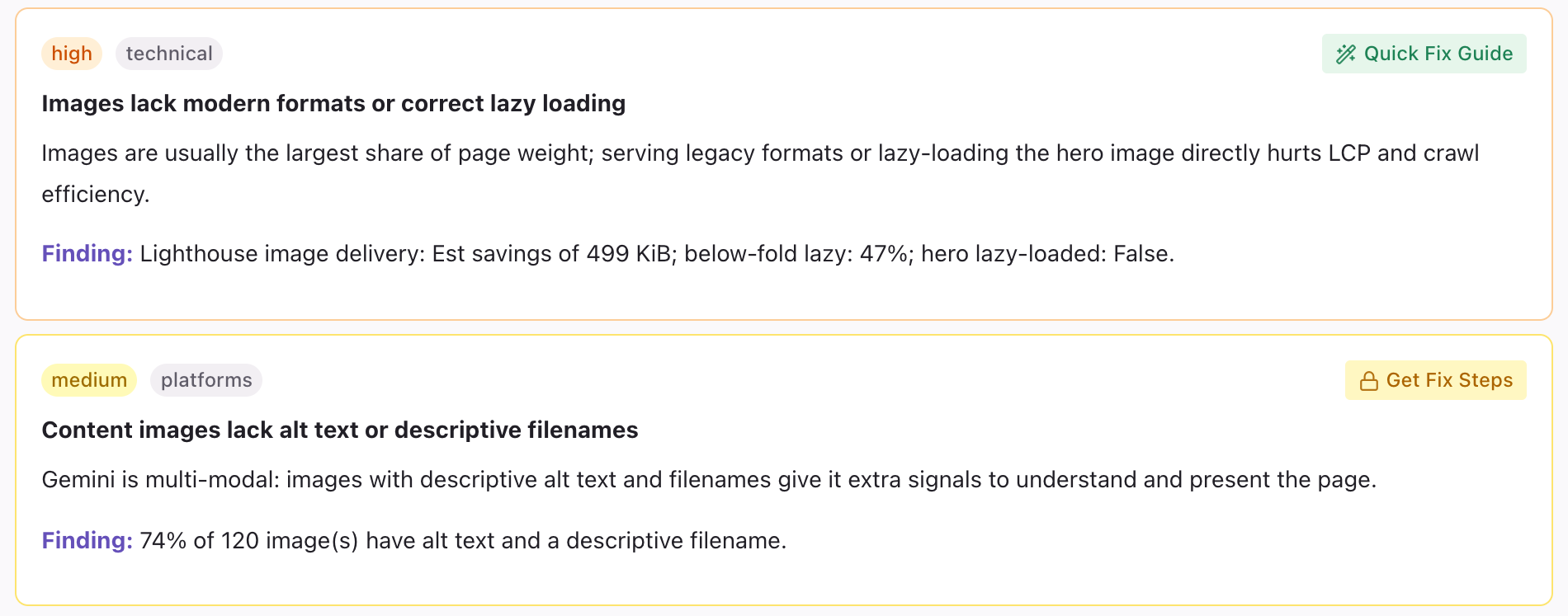
- A coloured severity label: critical, high, medium or low.
- A category, which tells you the type of problem, such as schema, technical, platforms or content.
- A one-line summary of the problem in plain language.
- What it means for you.
- A Finding: what Cyberbard actually saw on your site.
- A button to open the step-by-step help (see below).
Some cards show partial data. That means part of the information could not be collected, so the advice is based on less than usual.
Fix Steps and Quick Fix Guides
There are two kinds of step-by-step help:
- Quick Fix Guide: free, available on some issues straight away.
- Fix Steps: numbered, detailed steps for the harder issues. They are available once you unlock the report. Before that, the card shows Get Fix Steps with a lock.
After you unlock the report, the lock disappears and the button opens the steps:
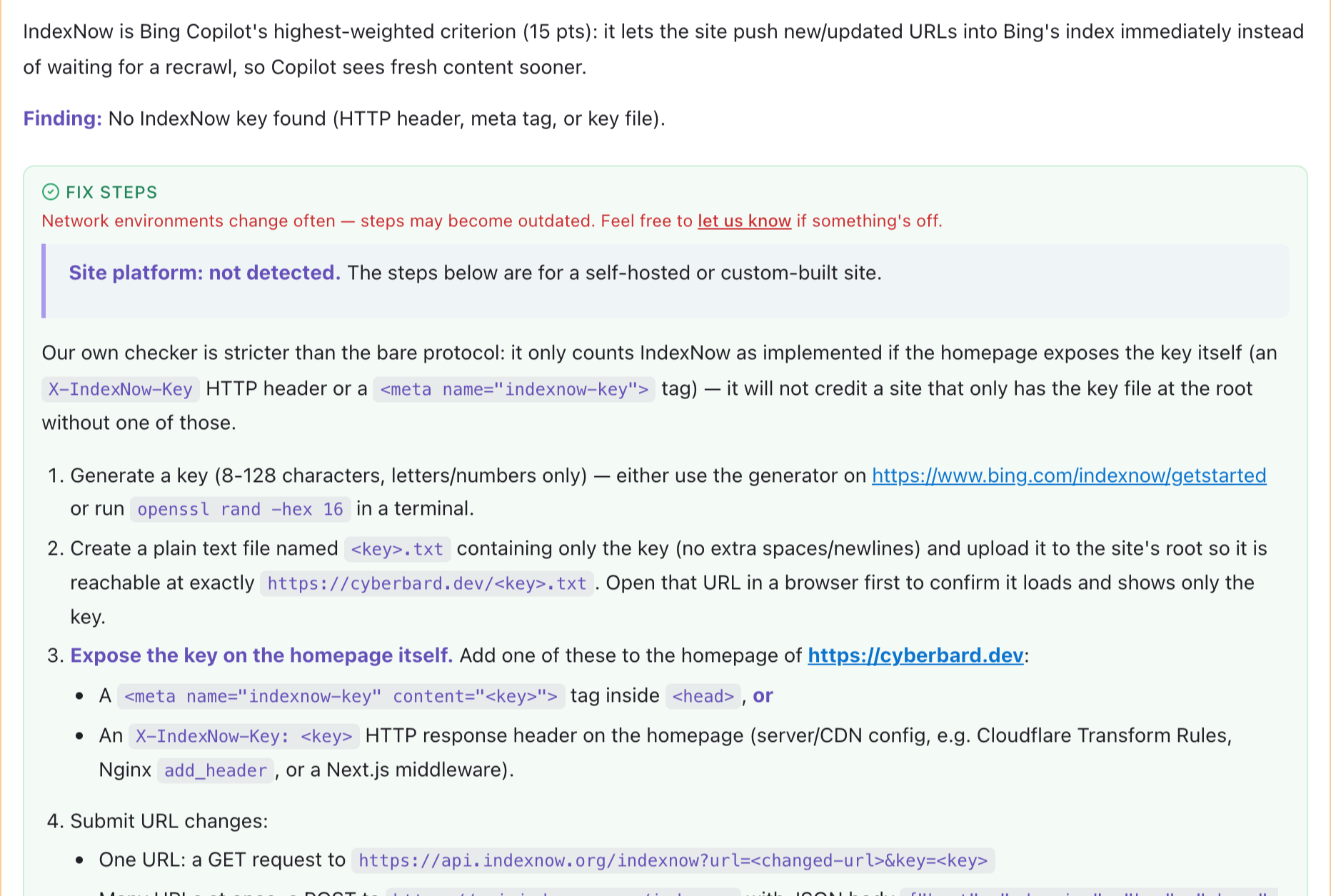
The steps are written so that you can:
- do the easy ones yourself,
- forward the rest to your web person or developer, or
- paste them into an AI coding assistant.
Websites and platforms change often, so a step may occasionally be out of date. If something does not match what you see, use the let us know link in the card and we will look at it.
How to work through it
- Start with the top three, then This Week.
- Make one change at a time where you can, so you know what helped.
- After a fix, run a Retest, or wait for the next scheduled test, to confirm it worked.
- Watch your trend chart. Fixed issues are reported as resolved.
A note on some platforms
On some website platforms you cannot change certain settings yourself. These issues are marked as locked by your website platform, so there may be nothing you can do about them directly.
The Fix Plan on a shared report
When you share a report, the person who opens the link sees the Summary and the Audit, but not the Fix Plan tab. See Share a report.
Related articles
- Retest and new tests — How to check that a fix worked, what a retest costs, and when to start a new test instead.
- What unlocking a report includes — What you can use for free, what 3 credits unlock on a report, and what happens after 30 days.
- Growth Plan — The Fix Plan covers your website. The Growth Plan covers everything outside it: listings, reviews and mentions.